Showing posts with label excel function. Show all posts

Wednesday, September 23, 2020

Rank Function in MS Excel

What it Does?

This function calculates the position of a value in a list, relative to the other values in the list. A typical usage would be to rank the Marks of students in a exam to find the topper. The ranking can be done on an ascending (low to high) or descending (high to low) basis.

If there are duplicate values in the list, they will be assigned the same rank. Subsequent ranks would not follow on sequentially, but would take into account the fact that there were duplicates. If the numbers 30, 20, 20 and 10 were ranked, 30 is ranked as 1, both 20's are ranked as 2, and the 10 would be ranked as 4

Syntax:                       

=RANK(NumberToRank,ListOfNumbers,RankOrder)


The RankOrder can be 0 zero or 1. Using 0 will rank larger numbers at the top. (This is optional, leaving it out has the same effect). Using 1 will rank small numbers at the top.                            

Example:                     

The following table was used to record the times for athletes competing in a race.                            
The =RANK() function was then used to find their race positions based upon the finishing times.     

In this example, the athlete who completes the race in lesser time will be shown in the 1st position and so on.

Rank Function Example GIF Image
Rank Function Example


Tuesday, January 2, 2018

Excel Function to Extract a Word or Text from a Cell

Excel UDF function that makes it easy to extract a word or text from cell in Excel.

This is a single function! It does NOT require a complex formula or nested functions or anything like that. To use this function, we first need to create it using a UDF, User Defined Function. You can learn about this kind of function here: User Defined Functions in Excel

Syntax


(UDF code for this function listed in the next section)
 =Get_Word(input_data, delimiter, word)

Argument
Description
Input_data The cell or text from which you want to get a word or text.
Delimiter The character that separates your text. In a sentence, this would be a space. It could be a dash, for things like part numbers, or, really, anything that separates your text into individual sections or elements. If the value in here is not a number, it must be surrounded with double quotation marks "".
Word This is a number. The number is which word or individual section you want to get from the text. 1 means get the first word/section in the cell; 2 means get the second word/section in the cell, etc.

Create the Function and Install It


(If you do not know about UDFs, please visit the link at the top of this tutorial. Here, I assume you know what they are.)

Here is the UDF code:
Function Get_Word(input_data, delimiter, word)  
   
   'make input number more friendly for users  
   word = word - 1  
   
   input_data = Split(input_data, delimiter)  
   
   Get_Word = input_data(word)  
   
 End Function  
I only included one comment above because the rest of the code is self-explanatory if you know VBA, and, if you don't know VBA, it doesn't really matter, because it works already.

Copy & Paste the above code into a module in the VBA Editor (Alt + F11 and then Insert > Module) and then go back to Excel and we can begin to use it.


Function Examples


Get a Word


Here is our sample:
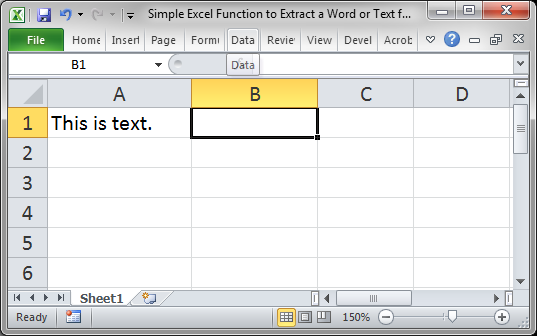
Get a Word

Let's get is from this sentence using our new function.
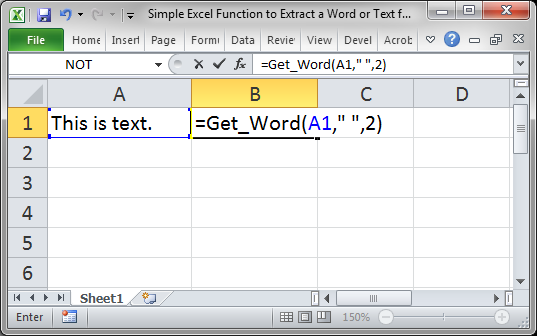
Get a Word UDF

Notice that the second argument is a blank space surrounded by double quotation marks. This is because space is what separates the individual parts of the text in cell A1.

The third argument is 2, which says that we want to get the second word from that cell, which will be is.

Result:
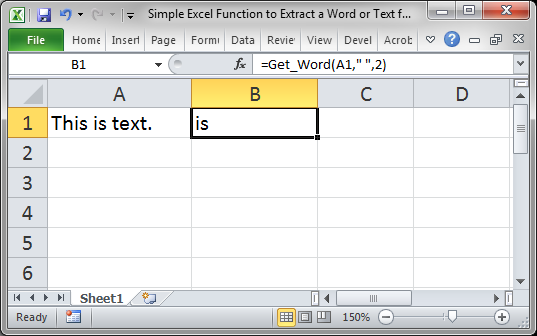

Result


Get a Part Number


This follows the same pattern as above.

Sample data:
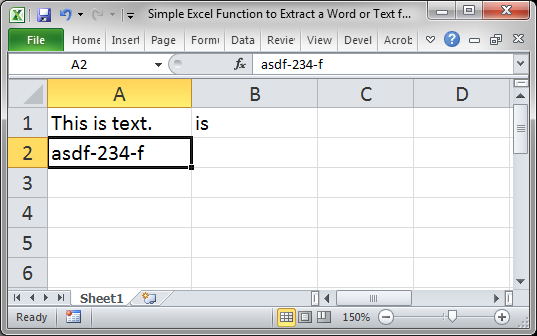

Sample Data

I want to get the number 234 from this cell.
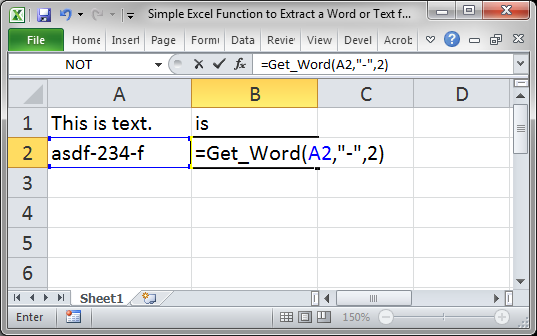
Get a Word UDF SAMPLE

Here, the delimiter is a dash, and of course, it needs to be surrounded with double quotation marks. The 2 in the third argument means to get the second word or element from the cell. The function breaks the original cell into parts based on the delimiter that you enter and you just need to tell Excel which part you want to get back.


Result:
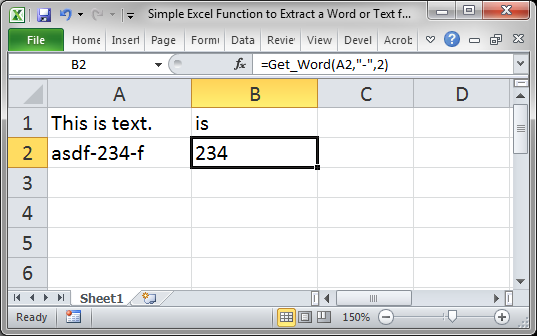

Get a Word UDF SAMPLE Result

Notes

This is a great UDF. I love how simple it is to use and how easily it does something you expect Excel to do.
If you didn't understand everything in this tutorial, please read the UDF tutorial that is linked to at the top of this tutorial. That will get you up-to-speed on how these types of custom functions work in Excel.


Friday, January 20, 2017

Arrange and View Multiple Worksheets at Once in Excel

This feature allows you to view multiple worksheets at once from the same workbook at the same time.

 You need to follow beneath simple steps to view multiple worksheets at once from the same workbook at the same time:

  1. Go to the View tab and click New Window

Wednesday, January 18, 2017

Count Specific Errors in excel

Learn, How to count the occurrence of a specific error in a Range of cells in Excel.

Follow beneath steps to Count the number of times a specific error appears in a range.

Select the entire range of cells, for which you want to take the count of error occurrence.
 =COUNTIF(A1:A5,"#NAME?")  

This is NOT an array formula.

A1:A5 is the range to check; change this to fit your data.

#NAME? is the error that you want to count. Change this to the desired error and make sure it is surrounded with quotation marks.


Result:


Sunday, January 15, 2017

Count the Errors in a Range of cells in Excel

Learn, How to count the number of errors in a range of cells in Excel:

Follow beneath steps to Count all of the errors that occur in a range of cells:

Select the entire range of cells, for which you want to take the count of error occurrence.

 =SUM(ISERROR(A1:A5)*1)

Array formula: you must enter this into the cell using Ctrl + Shift + Enter or it won't work.

A1:A5 change this to your range of data. That's all you have to do to get this to work for your data.


Result:


Thursday, January 12, 2017

Calculate Average Excluding Zeros in Excel

Exclude zeros while calculating the average in Excel. This method removes all zeros from the equation.

We have two methods for Calculation:

Method 1 : For Excel 2007 and later versions: 

Select the range of cells, for which you want to calculate Average and use below function:
 
 =AVERAGEIF(A1:A5,"<>0")  

 A1:A5 change this to the range that you want to average and that's it.

"<>0" is the part that tells the function to ignore cells that have zeros in them.


Result:


Method 2 : For Excel 2003 and older versions: 

If you have Excel 2003 or earlier, you must use this version of the formula. 

Select the range of cells, for which you want to calculate Average and use below function:

 =AVERAGE(IF(A1:A5<>0,A1:A5))

Array Formula - this is an array formula so you must enter it using Ctrl + Shift + Enter.

A1:A5 is the range that you want to average; make sure to change it in both parts of the formula to work with your data.


Result:


If you don't enter this formula correctly, you will see 2.4 as a result.

Wednesday, November 2, 2016

SEARCH Function in Ms-Excel

The Microsoft Excel SEARCH function returns the location of a substring in a string. The search is NOT case-sensitive.
The SEARCH function is a built-in function in Excel that is categorized as a String/Text Function. It can be used as a worksheet function (WS) in Excel. As a worksheet function, the SEARCH function can be entered as part of a formula in a cell of a worksheet.


View Video on YouTube

Syntax

The syntax for the SEARCH function in Microsoft Excel is:

 SEARCH( substring, string, [start_position] )  

Parameters or Arguments

substring :  The substring that you want to find.
string      :  The string to search within.
start_position :  Optional. It is the position in string where the search will start. The first position is 1.

Note: If the SEARCH function does not find a match, it will return a #VALUE! error.

Applies To: Excel 2016, Excel 2013, Excel 2011 for Mac, Excel 2010, Excel 2007, Excel 2003,

                  Excel XP, Excel 2000

Type of Function : Worksheet function (WS)
Example (as Worksheet Function) - How to use the SEARCH function as a worksheet function in Microsoft Excel:


Based on the Excel spreadsheet above, the following SEARCH examples would return:

 =SEARCH("bet", A1)  
 Result: 6  
   
 =SEARCH("BET", A1, 3)  
 Result: 6  
   
 =SEARCH("e", A2)  
 Result: 2  
   
 =SEARCH("e", A2, 1)  
 Result: 2  
   
 =SEARCH("e", A2, 3)  
 Result: 9  
   
 =SEARCH("in", A2, 6)  
 Result: #VALUE!  
   
 =SEARCH("cel", "Excel", 1)  
 Result: 3  

Monday, October 24, 2016

IF function in Microsoft Excel

IF Function uses, when we want output on the basis of a condition. IF function returns one value if the condition is TRUE, or another value if the condition is FALSE. The IF function is a built-in function in Excel that is categorized as a Logical Function.

To make it more clear understanding for you,  This function tests a condition. If the condition is met it is considered to be TRUE. If the condition is not met it is considered as FALSE. Depending upon the result, one of two actions will be carried out.

Syntex:
 =IF(logical_test, [value_if_true], [value_if_false])  
 OR  
 =IF(Condition,ActionIfTrue,ActionIfFalse)  


Example:
The following table shows the Sales figures and Targets for sales reps.
Each has their own target which they must reach.
The =IF() function is used to compare the Sales with the Target.
If the Sales are greater than or equal to the Target the result of Achieved is shown.
If the Sales do not reach the target the result of Not Achieved is shown.
Note that the text used in the =IF() function needs to be placed in double quotes "Achieved".


Monday, September 26, 2016

CHAR function in excel

What Does It Do?

This function converts a normal number to the character it represent in the ANSI character set used by Windows. For Example:

  CHAR Function Example

Syntax:

    =CHAR(Number)


The Number must be between 1 and 255.

The following is a list of all 255 numbers and the characters they represent. Note that most Windows based program may not display some of the special characters, these will be displayed as a small box.

Special Characters Code List Image

Note: Number 32 does not show as it is the SPACEBAR character.


Wednesday, September 21, 2016

CELL function in MS Excel

Cell Function

What Does It Do?

This function examines a cell and displays information about the contents, position and formatting.

Syntax

 =CELL("TypeOfInfoRequired",CellToTest)  

The TypeOfInfoRequired is a text entry which must be surrounded with quotes " ".


Codes used to show the formatting of the cell. 

Cell Functions Format

For more Examples Click on below links:

Monday, August 22, 2016

MS-Excel Self-Skill test for free

Excel is too big to know everything. Even the experts generally have an area of expertise. It is better to know the features that will help you with your CURRENT requirements! So for this you should know that:
  • What your existing skill level is (in more detail than just beginner, intermediate or advanced)
Once you get the answer of above question, you'll be able to find that on what should you work on?


The Excel Skills Assessment test assesses the person’s aptitude for Excel learning and allows you to match your Excel skill level to the correct training material. It measures your skill across four axises being:
  • Fundamental Knowledge- the basics
  • Using Tools- using the tools available in excel e.g. sort, autofilter, pivots
  • Using Functions- using Excel’s key formula functions e.g. vlookup, sumif etc
  • Super User Attributes- ability to solve problems in excel using all the above

The test is available for Excel 2007, 2010 and 2013 in French and English. It includes videos and in application testing exercises. The test focuses on the following 4 areas:
  • Software environment (save, print, protect, etc.)
  • Functions (SUM, IF, etc.)
  • Data management (filters, pivot tables, etc.)
  • Formatting (number formats, conditional formatting, etc.)
You can assess yourself by giving Self-Test of your excel skills. You can choose any of the site mentioned below to give the test:


http://www.advanced-excel.com/excel_tests.html
http://www.auditexcel.co.za/excel-skills-assessment/

http://www.excel-skills.com/demos2010/skills_test.php

http://www.isograd.com/EN/freepositioningintro.php

http://www.proprofs.com/quiz-school/story.php?title=microsoft-excel-proficiency-test

http://www.skills-assessment.net/test-excel-skills.htm

https://accessanalytic.com.au/free-excel-stuff/free-excel-test/


Sunday, August 21, 2016

VLOOKUP Function in MS Excel

In this tutorial we are going to explain you how you can use the VLOOKUP Function in Microsoft Excel

Purpose

When you need to find things from a big table or a range by row. VLOOKUP searches for a value in the first column of a table. At the match row, it retrieves a value from the specified column.

Return Value

The matched value from a table.

Syntax

=VLOOKUP (lookup_value, table_array, col_index_num, [range_lookup])

Arguments

  • lookup_value - The value to look for in the first column of a table.
  • table_array - The table from which to retrieve a value.
  • col_index_num - The column in the table from which to retrieve a value.
  • range_lookup - [optional] TRUE or 1 = approximate match (default). FALSE or 0 = exact match.

Note: Recommended [range_lookup] as 0 or FALSE, as mostly required exact output. 


Simplifying above Syntax and Arguments

=VLOOKUP(ItemToFind,RangeToLookIn,ColumnToPickFrom,SortedOrUnsorted)

The ItemToFind is a single item specified by the user.
The RangeToLookIn is the range of data with the row headings at the left hand side.
The ColumnToPickFrom is how far across the table the function should look to pick from.
The Sorted/Unsorted is whether the column headings are sorted. TRUE for yes, FALSE for no.

Note: Recommended [range_lookup] as 0 or FALSE, as mostly required exact output.

Example:

VLOOKUP Function Example Image


Thursday, May 5, 2016

ISEVEN Function in Excel

What Does It Do?

This function tests a number to determine whether it is even or not. An even number is shown as TRUE an odd number is shown as FALSE. 

  • Note that decimal fractions are ignored.
  • Note that dates can be even or odd.
  • Note that text entries result in the #VALUE! error.  


Refer the below example for your better understanding:

ISEVEN Function Example Image

Syntax:

    =ISEVEN(CellToTest)

Formatting:

No special formatting is required.


Wednesday, April 20, 2016

TRIM Function in Excel

TRIM function Removes all the unnecessary leading and trailing spaces between words in a string (except single space between the words).

TRIM is useful when cleaning up text that has come from other applications or environments.


Syntax: =TRIM (text)

Parameter list:

    text - The text from which to remove extra space(s).

Example:


Tuesday, April 19, 2016

REPLACE Function in Excel

REPLACE Function is used when to replace text based on its location. or If you know the position of the text to be replaced, use the REPLACE function.

Syntex: =REPLACE (old_text, start_num, num_chars, new_text)

Parameter:

        old_text        - The text to replace.
        start_num     - The starting location in the text to search.
        num_chars    - The number of characters to replace.
        new_text      - The text to replace old_text with.


Example: 


Monday, April 18, 2016

Substitute Function in Excel

Use the SUBSTITUTE function when you want to replace text based on its content, not position and it is  also use to Replace All or Part of a Text String With Another Text String - Function Description and Examples are mentioned below:

Syntex: =SUBSTITUTE (text, old_text, new_text, [instance])

SUBSTITUTE function finds and replaces old_text with new_text in a text string. Instance limits SUBSTITUTE replacement to one particular instance of old_text.

SUBSTITUTE function is case-sensitive and does not support wildcards.

Parameter:

    text     - The text to change.
    old_text     - The text to replace.
    new_text     - The text to replace with.
    instance     - [optional] The instance of old_text to replace with new_text. Optional; if not supplied, all instances of old_text are replaced with new_text.


Examples are as follows:

1. Replacing "2010" to "2013" in below example:


2. Below example is self defined and has its all aspects i.e. indicate which occurrence you want to substitute, Case sensitive, what happens, if instance is not defined.


Use SUBSTITUTE to replace text based on content. Use REPLACE when to replace text based on its location.

Wednesday, April 8, 2015

Best Links to Learn Advance Excel / Macro

Learn Excel, VBA and Macros for Microsoft Excel with the help of below mentioned Sites:

Training / Books / Site


Getting Started with VBA.
http://www.datapigtechnologies.com/ExcelMain.htm

If you are serious about learning VBA try
http://www.add-ins.com/vbhelp.htm

Excel Tutorials and Tips - VBA - macros - training
http://www.mrexcel.com/articles.shtml


Here's a good primer on the scope of variables.
Scope Of Variables And Procedures

See David McRitchie's site if you just started with VBA
http://www.mvps.org/dmcritchie/excel/getstarted.htm

What is a Visual Basic Module?
http://www.emagenit.com/VBA%20Folder...vba_module.htm

Ron de Bruin's intro to macros:
http://www.rondebruin.nl/code.htm

Creating An XLA Add-In For Excel, Writing User Defined Functions In VBA
http://www.cpearson.com/excel/createaddin.aspx

How do I create a PERSONAL.XLS(B) or Add-in
http://www.rondebruin.nl/personal.htm

Creating custom functions
http://office.microsoft.com/en-us/ex...117011033.aspx


Writing Your First VBA Function in Excel
http://www.exceltip.com/st/Writing_Y...Excel/631.html

VBA for Excel (Macros)
http://www.excel-vba.com/excel-vba-contents.htm

VBA Lesson 11: VBA Code General Tips and General Vocabulary
http://www.excel-vba.com/vba-code-2-1-tips.htm

Excel VBA -- Adding Code to a Workbook
http://www.contextures.com/xlvba01.html

Learn to debug:
http://www.cpearson.com/excel/debug.htm

How To: Assign a Macro to a Button or Shape
http://peltiertech.com/WordPress/how...tton-or-shape/


User Form Creation
http://www.contextures.com/xlUserForm01.html

When To Use a UserForm & What to Use a UserForm For
http://www.ozgrid.com/Excel/free-tra...ba2lesson2.htm

Excel Tutorials / Video Tutorials - Functions
http://www.contextures.com/xlFunctions02.html

INDEX MATCH - Excel Index Function and Excel Match Function
http://www.contextures.com/xlFunctions03.html

Excel Data Validation
http://www.contextures.com/xlDataVal08.html#Larger
http://www.contextures.com/excel-dat...ation-add.html


Your Quick Reference to Microsoft Excel Solutions
http://www.xl-central.com/index.html

New! Excel Recorded Webinars
http://www.datapigtechnologies.com/ExcelMain.htm

Programming The VBA Editor - Created by Chip Pearson at Pearson Software Consulting LLC
This page describes how to write code that modifies or reads other VBA code.
http://www.cpearson.com/Excel/vbe.aspx


DonkeyOte: My Recommended Reading, Volatility
http://www.decisionmodels.com/calcsecretsi.htm

Sumproduct
http://www.xldynamic.com/source/xld.SUMPRODUCT.html


Arrays
http://www.xtremevbtalk.com/showthread.php?t=296012

Pivot Intro
http://peltiertech.com/Excel/Pivots/pivotstart.htm

Email from XL - VBA
http://www.rondebruin.nl/sendmail.htm

Outlook VBA
http://www.outlookcode.com/article.aspx?ID=40


Function Dictionary
http://www.xlfdic.com/

Function Translations
http://www.piuha.fi/excel-function-name-translation/

Dynamic Named Ranges
http://www.contextures.com/xlNames01.html


How to create Excel Dashboards
http://www.contextures.com/excel-dashboards.html
http://chandoo.org/wp/excel-dashboards/
http://chandoo.org/wp/management-dashboards-excel/
http://www.exceldashboardwidgets.com/
http://www.andypope.info/charts/gauge.htm

Excel Dashboard / Scorecard Ebook
http://www.qimacros.com/excel-dashboard-scorecard.html


Mike Alexander from Data Pig Technologies
Excel 2007 Dashboards & Reports For Dummies

Templates
http://www.cpearson.com/Excel/Topic.aspx
http://www.contextures.com/excel-tem...lf-scores.html

Date & Time stamping:
http://www.mcgimpsey.com/excel/timestamp.html

Get Formula / Formats thru custom functions:
http://dmcritchie.mvps.org/excel/formula.htm#GetFormat


A nice informative MS article "Improving Performance in Excel 2007"
http://msdn.microsoft.com/en-us/library/aa730921.aspx

Progress Meters
http://www.andypope.info/vba/pmeter.htm
http://www.xcelfiles.com/ProgressBar.html

And, as your skills increase, try answering posts on sites like:
http://www.mrexcel.com
http://www.excelforum.com
http://www.ozgrid.com
http://www.vbaexpress.com
http://www.excelfox.com


Source

Sunday, November 9, 2014

MIN Function in MS-Excel

C
D
E
F
G
H
3
Values
Minimum
4
120
800
100
120
250
100
 =MIN(C4:G4)
6
Dates
Maximum
7
1-Jan-98
25-Dec-98
31-Mar-98
27-Dec-98
4-Jul-98
1-Jan-98
 =MIN(C7:G7)

What Does It Do?
This function picks the lowest value from a list of data.

Syntax
=MIN(Range1,Range2,Range3... through to Range30)

Formatting
No special formatting is needed.

Example
In the following example the =MIN() function has been used to find the lowest value for each region, month and overall.

B
C
D
E
G
22
Sales
Jan
Feb
Mar
Region Min
23
North
£5,000
£6,000
£4,500
£4,500
 =MIN(C23:E23)
24
South
£5,800
£7,000
£3,000
£3,000
25
East
£3,500
£2,000
£10,000
£2,000
26
West
£12,000
£4,000
£6,000
£4,000
28
Month MIN
£3,500
£2,000
£3,000
 =MIN(E23:E26)
30
Overall MIN
£2,000
 =MIN(C23:E26)